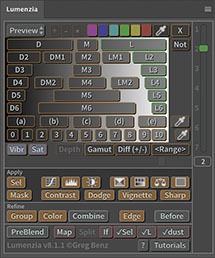
From time to time I get questions from customers about whether they will still be able to use my Photoshop plugins (Lumenzia and Web Sharp Pro) if they switch to Affinity. It’s a complex issue, but the short answer is that my plugins will not run under Affinity. This is by no means unique to me or my software, so I thought it may help to write a more detailed explanation to understand why some (many) Photoshop plugins cannot or will not work in Affinity.
A significant amount of confusion surrounds the term “plugin”, which is a generic reference that doesn’t really tell you its capabilities. By way of analogy, knowing you have a “car” doesn’t tell you if it can run on gas (vs needing electricity) – you need to know what kind of car. Similarly, there are vast differences between different types of “plugins” in Photoshop, and that impacts the potential that they might work with Affinity.
What is a plugin? What other types of 3rd-party tools are there?
The term “plugin” means at least 3 different things in Photoshop and there are other types of 3rd-party tools which may be used to automate Photoshop. So let’s start by quickly defining what options there are to add new capabilities or automation to Photoshop:
- C++ plugins.
- They integrate with Photoshop through Adobe’s SDK (software development kit), but are otherwise standalone programs (compiled from code written in the C++ programming language).
- They have their own user interface and do not rely on Photoshop’s native features.
- Modern MacOS plugin have a “.plugin” file extension.
- Windows and older Mac plugins may have an “.8bf” extension (for a filter, other types of plugins for things like file formats have other extension starting with 8b).
- These plugins can be found in Photoshop primarily under the Filter menu (but also under File / Automate menu for non-filter applications like Topaz Gigapixel).
- The actual plugin files may be found in MacOS Finder under /Library/Application Support/Adobe/Plug-Ins/CC/DxO/ (or the older location: ~/Applications/Adobe Photoshop <year>/Plugins)
- The actual plugin files may be found in Windows File Explorer under C:\Program Files\Common Files\Adobe\Plug-Ins\CC (or the older location: C:\Program Files\Adobe\Adobe Photoshop <year>\Plug-ins)
- UXP plugins (aka UXP panels).
- These are written in JavaScript, HTML5, and in rare cases may be hybrid plugins (have some native capabilities in compiled binaries called from the JavaScript).
- These are mostly or completely dependent on Photoshop APIs to do anything to your image. Their user interface is heavily dependent on Adobe APIs.
- These are always found under the dedicated Plugins menu in PS.
- These plugins are installed via the Adobe Creative Cloud installer (either directly through the Adobe marketplace, or by double-clicking a “.CCX” file provided by the developer)
- CEP plugins (aka CEP panels).
- These are conceptually similar to UXP plugins, but use much older software standards.
- These cannot run when using Photoshop running natively on Apple Silicon (possible under Rosetta, but this slows Photoshop performance by about 50%).
- If supported, they are found under the Window / Extensions menu in PS.
- PSJS scripts
- These use the same JavaScript standards and API as UXP plugins, but lack plugin features (not permanently installed, no dedicated panel interface, limited capabilities, etc).
- These could be launched via the File / Scripts / Browse (or Scripts Event Manager) menu, by dropping on the Photoshop app icon, or by dropping on the Photoshop canvas when no images are open.
- JSX scripts
- These use the same (older) JavaScript standards and API as CEP plugins, but also lack other plugin capabilities.
- Unlike CEP panels, these may still run natively on Apple Silicon.
- These may be launched with the same options as JSX.
- Actions
- These allow playback of Photoshop features and may also invoke features of UXP plugins which explicitly are designed to support action recording. Lumenzia supports such recording extensively (Web Sharp Pro also has a significant amount of support).
- These capabilities are explicitly tied to Photoshop, but migration would typically be possible. Affinity’s term for this capability is “macros”. A large degree of Photoshop functionality is available in a similar way in Affinity and a similar macro could often be created without extensive effort.
- These are found in the Window / Actions panel in Photoshop.
- BridgeTalk
- This is an Adobe system for communication between applications. For example, this facilitates integration between Lightroom and Photoshop (such as opening / stacks images and bringing the new file back to Lightroom).
- 3rd-party developers sometimes use this to leverage Photoshop, but it’s rare and you wouldn’t confuse it with a plugin as this software is run external to Photoshop.
Which of these can you continue to use when switching from Photoshop to Affinity?
Of all the items above, only #1 (C++ plugins) may be directly supported with Affinity – and only some of these plugins will work, it depends on the specific plugin. Your best bet is to use the official installer, but you may try manually installing your plugins. Go to Affinity Settings / Photoshop Plugins, click the button to open the default folder, and then manually copy plugins there (ie to a location Affinity looks for plugins when it launche). You may need to enable “allow unknown plugins” in the same settings area (an unsupported plugin may cause Affinity to lock up and require you to force quit).
Item #6 (Actions) could generally be ported in many cases with modest effort, so there’s a good chance you can find these or make them yourself.
None of the other five technologies are supported under Affinity. So anything you find under the Plugins or Window / Extensions menu will not work. Or to put it another way, any panel you can dock somewhere in the Photoshop interface will only work in Photoshop.
Can UXP / CEP plugins be migrated or re-written? Maybe in the future?
As for UXP (or CEP) “plugins”, there is no comparable JavaScript / HTML interface currently supported in Affinity. Even if it were, the code is primarily written for Photoshop-specific APIs. Even if there were a direct 1:1 mapping of all the attempts to use an API to get information from Photoshop or request it to do something, it would be a tremendous effort to migrate the code. It would likely require a developer to undertake significant effort to rewrite much of the functional code from scratch.
The main panel interface is built from a limited subset of HTML / CSS, but mostly follows conventional web standards. So it could perhaps be adapted with some effort if another software program used HTML for the interface. However, any popup dialogs are likely to rely heavily on Adobe-specific APIs / elements and would likely take significant work to adapt. So any code reuse for the user interface would also likely be minimal and there would be significant effort on this front as well.
So even if a similar scripted plugin capability were added to Affinity, it would require significant effort from the developer. I believe there would be limited interest from most developers to support it for a number of reasons. The number of potential customers using Affinity is much smaller than Photoshop is much smaller, and a large number of these users state that their primary interest in Affinity is to reduce their costs. So the potential revenue is probably not attractive given a smaller number of more price-sensitive users. That might be offset somewhat by a smaller number of competing plugins for Affinity, but the costs are quite significant. In addition to the direct cost of migrating and maintaining the code, there would likely be additional costs to generate Affinity-specific training videos.
Summary:
If you have a 3rd-party plugin which appears in Photoshop under the Filter or File / Automate menu, there is a good chance you can use it with Affinity (but no guarantees).
If you have something in the Actions in Photoshop, there’s a decent chance you can find an equivalent or similar macro for Affinity (or may be able to convince the creator to migrate it).
However, if you use a plugin which is launched via the Plugins menu or Window / Extensions, you’re out of luck. It simply will not run on Affinity and it is very unlikely a developer would create something comparable. If you’re just doing something very simple, you may be able to substitute macros instead.
There are significant technical, practical, and financial barriers to offering support for many plugins under Affinity. Hopefully, this helps understand what you might be able to take over to Affinity and why most 3rd-party plugins are only available for Photoshop.
Note: I am not an expert on everything involved here and these things may change over time. This information is correct to the best of my knowledge. Please comment below if you think I’ve made a mistake, missed something relevant, or if this information becomes outdated due to some future update.